


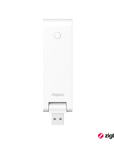


Hub E1
Grab a bundle & explore our kits!
Information:
Aqara Hub E1 can connect up to 128 Aqara devices (*use of repeaters such as the Aqara Smart Plug or Aqara Smart Wall Switch(With Neutral) is required). Zigbee 3.0 Support, enjoy the benefits of the fastest, most stable, and energy-efficient smart home technology.
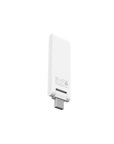
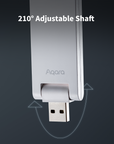
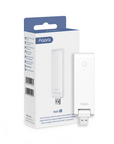
[Flexible and Small Size] The Hub E1 shaft angle can be changed within 210 degrees, which makes its placing extremely flexible. The Smart Hub E1 is compact and very easy to carry, net weight: 24 grams. Occupies less space and can be placed almost anywhere.
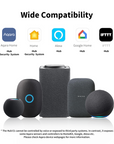
[All-Round Compatibility] Makes Aqara child devices connected to it compatible with most popular ecosystems and voice assistants such as HomeKit, Alexa, Google, and IFTTT. (*The Hub E1 is not an end device, and it cannot be controlled by third-party ecosystems. In contrast, it exposes the supported Aqara child devices to such ecosystems and/or makes them controllable by voice.) Note: Not all Aqara child devices are compatible with all platforms. Please see details for each device.
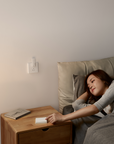
[Powered by USB-A]A regular USB-A port is integrated into the Hub's housing so that it can be powered from almost any USB-equipped device such as a power bank, power strip, outlet, PC, or even a router.
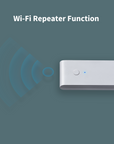
[Wi-Fi Repeater Function] The Hub E1 not only expands your Zigbee network but also acts as a Wi-Fi 2.4 GHz repeater and makes the coverage of other Aqara hubs and other Wi-Fi devices more stable. Please note: Only 2 devices are supported.
 Aqara
Aqara
 Apple Home
 Alexa
Alexa
 Google Home
 IFTTT
IFTTT

The Aqara Hub E1
Big power in a small size.
* Apart from HomeKit, the compatible child devices connected to the Hub E1 can be
used with Google Assistant, Amazon Alexa, IFTTT and more.

Features

Zigbee 3.0 Protocol
The E1 supports up to 128 compatible Aqara Zigbee devices under supported network conditions. Compatible repeaters may be required to reach the maximum capacity.

Powered by USB-A
A regular USB-A port is integrated into the Hub's housing so that it can be powered from almost any USB-equipped device such as a power bank, power strip, outlet, PC, or even a router.

All-Round Compatibility
Makes Aqara child devices connected to it compatible with most popular ecosystems and voice assistants such as HomeKit, Alexa, Google, IFTTT, Alice, and Marusya.

210° Adjustable Shaft
The E1 Hub shaft angle can be changed within 210 degrees, which makes its placing extremely flexible.

Wi-Fi Repeater Function
The Hub E1 not only expands your Zigbee network but also acts as a Wi-Fi 2.4 GHz repeater** and makes the coverage of other Aqara hubs and other Wi-Fi devices more stable.

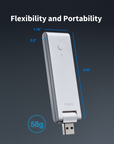
Flexibility and Portability
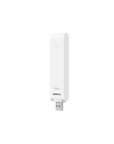
Measuring 108 × 30 × 8 mm and weighing 24 g net, the compact E1 fits into a small space near a suitable USB power source.
* Zigbee routers/repeaters such as Smart Wall Switch (with Neutral), Smart Plug, etc. are required.
** Only 2 devices are supported.
All-Round Compatibility
The Aqara Hub E1 makes your Aqara devices compatible with a wide range of popular ecosystems and voice assistants.
Apple HomeKit, Amazon Alexa, Google Assistant, IFTTT, and more are supported
* The Hub E1 is not an end device, and it cannot be controlled by third-party ecosystems. In contrast, it exposes the supported Aqara
child devices to such ecosystems and/or makes them controllable by voice.

Control, Anytime and Anywhere
Connect your Aqara devices across your home and control them all through the Aqara Home app. Check the status of your devices and get notifications even when you are away.

Seamlessly Connects up to 128 Aqara Devices* to Your Smart Home Network
Aqara’s smallest yet powerful smart home hub acts as the brain of all your smart home devices. Supports up to 128 both classic and the latest Aqara devices. In the meantime, enjoy the benefits of the fastest, most stable, and energy-efficient Zigbee 3.0 technology.
*Zigbee routers/repeaters such as Smart Wall Switch (with Neutral), Smart Plug, etc. are required.

Easily Powered by USB-A, Can be Placed Anywhere
A regular USB-A port integrated makes it available for almost any USB-equipped device such as a power bank, power strip, outlet, PC, or even a router. Moreover, the shaft angle can be changed within 210 degrees, which makes its placing extremely flexible.

Not only for Zigbee network but also expands your Wi-Fi Coverage
Acting as a Wi-Fi 2.4 GHz repeater, the Aqara Hub E1 makes the coverage of other Aqara hubs and other WiFi devices more stable.

Get notified if a water leak is detected, even if you are away!
Being connected to an Aqara hub, the Roller Shade Driver E1 can be automated depending on schedules (for example, the roller shade will only open on weekday mornings) or even based on your location.
Moreover, you will be able to check its status and control it by voice.
IF: Your location is more than 100 meters away from your home
THEN: Curtain closes to save energy


Forget about turning your lights on and off manually!
The Hub E1 allows Aqara 5ensors and controllers to work together via voice control and smart home automations. The light will turn on when you enter the room and turn off when the room is empty for a specified amount of tlme. You will be able to forget about pressing the switch button, which is more convenient, environmentally friendly, and hygienic.
IF: The motion is detected
THEN: The light ill turn on automatically


Specifications


FAQ
What is Ark Technology?
Ark technology is a distributed multi-level localized disaster recovery technology in the Aqara smart home system. Currently, Ark technology has been updated to version 2.0. It includes hub local automation capability, multi-hub standby replacement, proxy hub disaster recovery,etc., when cloud servers, Internet, router, hub running fault, It can provide disaster recovery protection against these issues at multiple levels, try it best to ensure local automation and scenario execution, and enhance the reliability and stability of the Aqara smart home system.
What is proxy hub disaster recovery capability?
When Aqara hub products (Like Hub M3, Hub M2, Air Conditioning P3, Camera Hub G3 ) running fault or powered off, some Zigbee devices which been connected to them can act as a "proxy hub", and the "proxy hub" is responsible for the execution of some basic local automation and scenarios.
Which devices are currently supported as proxy hub? (Some of the following products are only available in some countries or regions)
Smart scene panel switch S1 (requires firmware version no less than 5.2.6_0559) Curtain Controller C3 (requires firmware version no less than 0.0.0_0012) LED Strip T1 (requires firmware version no less than 0.0.0_2729) LED strip driver T1 (requires firmware version no less than 0.0.0_0024) Ceiling Light T1 (requires firmware version no less than 0.0.0_0026) Spotlight V1 (requires firmware version no less than 0.0.0_0025) Wall Outlet H2 (requires firmware version no less than 0.0.0_0027)
What are the precautions for proxy hub disaster recovery?
1. You need update the firmware of the device (including hub, proxy hub, other Zigbee Router) to the latest version. 2. Proxy hub disaster recovery technology can only support some simple automation conditions and actions (such as turn on/off the device).
What can we do if the Aqara Hub E1 fail to connect to Wi-Fi?
1. Bring your mobile phone closer to the Hub when connecting to Wi-Fi. 2. Connect your phone to Wi-Fi. 3. The phone is required to be connected to the Wi-Fi in the 2.4GHz band. 4. In case of the prompt of Hub connection failure on the mobile phone app, please reset the Hub: Press and hold the button on the Hub for 10s until the orange indicating light is flashing.
What scenarios can the Aqara Hub E1 be applied to?
Aqara Hub E1 can be applied to the standard USB interface with the output power higher than 2.5W (5V/0.5A), such as sockets, plugs, power adapters and appliances with the USB power supply interface.
What is the Wi-Fi relay function of Aqara Hub E1? How to use it?
1. Wi-Fi relay means that Aqara Hub E1 will generate new WLAN hotspots after being connected to the home wireless router to enlarge the signal cover for other Wi-Fi-appliable devices to connect, which can be used in places with poor Wi-Fi signal including hallway and entry door, and supports up to two accessories. 2. The Wi-Fi relay function can be enabled in the “Settings” - “Wi-Fi Relay” of the app. The device has default hotspot name and password, which can be changed by users.
What is the maximum connectable distance between the accessory and the Hub? Whether the signal can pass through the wall?
The connectable distance between the accessory and the Hub varies for different indoor environment. When it is applied in the home environment, it is recommended that the distance between the accessory and the Hub should be no more than 10m, with at most two walls.
Does the Hub have an alarm function?
The Hub has no built-in loudspeaker and buzzer, so it does not support the local audio alarm, however, it can work with other alarm device on the local area network or in the cloud through automation to achieve alarm function.
Why is the accessory often offline?
1. The accessory may be too far from the Hub, or have a metal shade in between. Please shorten the distance between the accessory and the Hub, and avoid the metal shade. 2. The battery may run down and need to be replaced. Tips: For a better experience, please upgrade the device firmware in time to ensure the compatibility and stable communications.
How to recognize the same type of accessory bound to the same Hub?
Please check the log information of the device to recognize devices; When adding a new device, it is suggested to mark the device by the installation location or usage, and rename the new device.
What is the “Preventing accidental deletion” of the Hub? How to use it?
1. The “Preventing accidental deletion” of the Hub is provided for the purpose to avoid the network disconnection of the device due to the misoperation of the function buttons (for example, press and hold a function button for 10s). After enabling this function, the device can only be unbound through the app (when the device is connected to the network normally). 2. The function can be enabled by selecting " Preventing accidental deletion settings" in the Setting in the app.
After the Hub disconnects to the network, why do some smart scenes still execute and some do not?
1. The execution mode of the smart scenes can be divided into cloud execution and local execution. The manual smart scenes are executed via the cloud, and the execution modes of automatic smart scenes can be viewed in the More Settings. 2. For the smart scenes executed via the cloud, it uploads the signal sensed by the trigger device to the cloud via network, which then sends the corresponding control commands to the executing device. In this way, the smart scenes cannot be executed in case of disconnection between the Hub and the network. 3. For the smart scenes executed locally, the trigger device will send the signal sensed to the Hub, which will send the corresponding control commands to the device through Bluetooth, Zigbee or local area network. In this way, the smart scenes can be executed when the Hub is connected to the actuating device normally, even if the router cannot connect to the external network.
How to add the Zigbee accessories to the Hub?
1. Zigbee accessories can connect the Aqara Hom APP via the Hub. When connecting the Aqara Home APP, please select the Hub to bind according to the prompt in the app. 2. If you want to change the Hub bound to a Zigbee accessory, please firstly delete the Zigbee accessory from the app homepage and add it again, then re-add the Hub to be bound. 3. You can view the list of accessories bound to the Hub in the app.
Does it support adding accessories to the Hub via Bluetooth?
The device does not support adding accessories via Bluetooth.
Why do the Wi-Fi-connectable smart devices cannot be added to the Hub?
1. The Wi-Fi-connectable devices connected the Aqara Home APP enable communication via the router-oriented local area network and Hub, to achieve the smart automations within the local area network; or connect to the cloud via the router, and the cloud sends the executive command to corresponding Wi-Fi-connectable actuating device based on the smart scenarios. 2. According to the working principle, the Wi-Fi-connectable devices can be interconnected through the above two methods, so it does not require or is unable to connect to the Hub.
why can't connect to the Wi-Fi repeater when I enabled the function?
When the Wi-Fi repeater function is enabled, the IP address is still assigned by the router. 1) When some brands of wireless routers receive frequent connection requests, they may refuse to assign IP addresses, resulting in Wi-Fi repeater unable to connect. It is recommended to restart the route or try to connect again after waiting for a period of time. 2) in some scenarios, the hub may switch back and forth to connect different routers when multiple routers in the same WLAN share SSID but use different channels (such as office environment) , once the channel is changed, the devices under repeater can not establish the corresponding IP relationship with the new route, resulting in the Wi-Fi repeater unable to communicate. It is recommended to experience the Wi-Fi repeater function only in a single router environment.
Why is the remote control unavailable after the Hub and its accessories are connected to the HomeKit?
Remote access through Apple Home requires a compatible Apple home hub, such as a supported HomePod or Apple TV, with internet access and the appropriate Home setup. iPad is not supported as a home hub in the current Apple Home architecture. Follow the requirements shown in the Home app.
Why are some accessories not founded in the Home APP?
When adding the Hub to the Home APP, only the accessories supporting HomeKit function can be displayed on the Home APP; The devices without the authorization of "Works with Apple HomeKit" cannot be connected to the HomeKit.
Why does the APP always fail to add the second device to the Wi-Fi repeater of the Hub?
When some mobile phones add the second device to the repeater, possible appear the mobile phone connects to the repeater first, which leads to the maximum number of two devices allowed to access reached. When the APP“Add device”page show "message send to device",then disconnect the mobile phone from the repeater manually, which can ensure that the second device can successfully connect to the repeater