






Presence Sensor FP2
Grab a bundle & explore our kits!
[Zone Positioning] The Aqara Presence Sensor FP2 (2.4GHz Wi-Fi REQUIRED) offers significant advantages over PIR infrared motion sensors by using a single radar sensor to monitor rooms of up to 40 m² (430 sq ft). You can also divide it into up to 30 zones, such as sofa, bed or desktop, etc. and set up individual automations for each zone. It is like having several PIR sensors at the same time with one Presence Sensor FP2. Please note: the FP2 is a WIRED sensor that should be constantly powered.
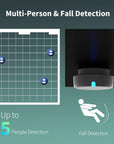
[Multi-Person & Fall Detection] The FP2 can simultaneously detect up to 5 people and trigger different scenarios and automation. Moreover, you can mount the FP2 on the ceiling and choose the Falling Detection Mode, which will detect and alert you through the app if someone falls. (Note: The Falling Detection Mode is only available when you mount the FP2 on the ceiling. The FP2 is not a medical device, and can only be used for notification purposes)
[Multi-Ecosystem Support] The Aqara Presence Sensor FP2 is exposed as multiple sensors to HomeKit, Alexa, Google Home and Home Assistant. You can integrate the sensor easily without requiring an Aqara hub, which is a great solution for smart home enthusiasts.
[Ultra-High Precision with More Privacy] By implementing millimeter-wave radar technology, the Presence Sensor FP2 provides precise detection of movement without producing false negatives, even for slight movements.( Please choose the zone type based on the actual environment, such as bed, sofa area, etc.) Also, the detection does not require a camera monitoring system, maximizing privacy for users. Also, thanks to its IPX5, the FP2 can also be installed in wet environments such as bathrooms.
[Built-In Light Sensor & Local Automations] The FP2 has a built-in light sensor, which provides greater flexibility and enjoyment when creating lighting automations (Only available in Aqara Home, HomeKit, and IFTTT). Moreover, automations of FP2 are executed without sending to the cloud and will keep working even if there is no internet connection.(Note: The FP2 is not a Zigbee device, and the recommended distance between the router and the FP2 is no more than 393 inches, without any obstacles.)
 Aqara
Aqara
 Apple Home
 Alexa
Alexa
 Google Home
 IFTTT
IFTTT

Presence Sensor FP2
Reinvent your space

Features

Zone Positioning
Monitor up to 40 m² (430 sq ft) using a single radar sensor, enabling tailored automations for areas like sofas, beds, or desks.

Multi-Person Detection
The FP2 radar sensor can detect up to 5 people at the same time, making it a useful tool for households with multiple occupants.

Ultra-High Precision
Radar can detect small movements and presence. Installation, room boundaries and interference affect accuracy; configure and test the sensor at its intended location.

Multi-Ecosystem Support
The FP2 is exposed as multiple sensors within third-party ecosystems, including HomeKit (and Home Assistant), Amazon Alexa, Google Home and Alice.

Flexible Placement
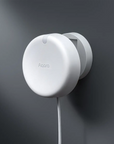
A recessed USB-C port and magnetic adjustable stand increases the flexibility of placement. Ceiling and vertical attachment are both supported.

Built-In Light Sensor
The FP2 has an extra built-in additional light sensor, which provides greater flexibility and enjoyment when creating lighting automations.

Local Automations
Supported local automations can continue during an internet outage. Notifications and cloud services require the appropriate connection.

Fall Detection and Alerts
FP2 provides an assisted fall-detection mode with suitable mounting and configuration, without a camera. Events may be missed; it does not replace human care or medical emergency equipment.
Multi-Ecosystem Compatibility
Effortlessly connect the FP2 with HomeKit (and Home Assistant)*, Amazon Alexa, and Google Home without the need for an Aqara hub. Perfect for smart home enthusiasts looking to seamlessly expand their ecosystem.
* The device can be added directly to Home Assistant using HomeKit Controller integration

Zone Positioning for Enhanced Home Monitoring
Monitor areas up to 40㎡ (430 sq ft) and divide them into 30 customizable zones. Enjoy enhanced performance over traditional PIR sensors, making automation setup simpler and more effective for diverse home environments.

Advanced Multi-Person Detection with AI Filtering
Up to five people can be tracked under suitable conditions. Supported human-recognition functions help reduce some interference from robots and pets, but do not eliminate all false alerts.

Precise Motion Detection with Enhanced Privacy
The FP2 uses millimetre-wave radar to help detect subtle movements without a camera or wearable. Accuracy depends on installation, environment and settings; false readings can occur.
Note: The FP2 is a wired sensor and requires constant power.

Local Automations
Wi-Fi doesn't mean being dependent on the cloud. The FP2 can easily execute automations locally, ensuring uninterrupted operation even without an internet connection.*
* Local automations are only available with other Aqara or Apple Home-compatible devices


Sleep mode provides estimates of movement, respiration and heart-rate indicators with historical reports, without a wearable. These are general household insights, not medical measurements or a diagnostic tool.

Fall-detection mode requires ceiling installation and calibration according to the manual. It may send a notification for a supported detected event, but cannot detect every fall and does not replace appropriate assistance arrangements.

The sensor can be installed in humid environments such as bathrooms and outdoors under a roof.

The built-in light sensor allows for advanced automations based on illuminance levels.
1>N, Why Is It So Revolutionary?
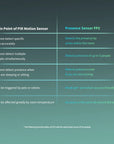
The mm Wave radar technology is the next big thing in smart home sensing! You will not need several sensors to detect different areas within a room, and careful configuration and long-term management of each sensor. With FP2, you will get multiple infrared (PIR) sensors and even one extra light sensor.


Flexible Installation
Mount the FP2 on walls, ceilings, or corners (using a suitable shelf) and adjust angles for optimal placement. Configure the sensor map and rotate the room layout by 45° to eliminate dead zones and ensure comprehensive zone detection.
Note: An compatible shelf is required for corner mounting


The FP2 can detect, if someone is still in bed, and the Wake-Up automation will not be triggered in case another person wakes up.
IF Someone enters the bathroom while presence is still detected in the bed zone
THEN Don’t open the shades
* Two automations should be configured: for presence and absence in the bed zone


The lighting can now follow you around the room: only the lights near you will turn on, while other lights will turn off once you leave the area.
IF Presence is detected in the kitchen
THEN Turn on the corresponding lights


Specifications


FAQ
What can Presence Sensor FP2 do?
Presence Sensor FP2 can detect presence/absence, falls, events of someone entering, leaving, approaching, going away and illuminance, and supports real-time tracking of multiple targets and zone settings.
Can Presence Sensor FP2 support multi-person detection?
Yes, it supports tracking up to 5 targets. Yet the best result can be achieved in case of tracking not more than 3 persons.
What is the detection zone?
The detection zone enables users to configure zone automation. Users can select from 320 cells provided for better automation setup, such as setting the sofa, bathroom, study, and dining table. Set zones will be added to the automation conditions. You can create up to 30 zones.
What is the use of stickers?
The area background image is mainly used to provide users with a reference system, helping them more precisely determine where the target is located; The background image only affects the user's subjective judgment and does not affect the device's recognition performance.
What is the use of the interference source, entrance and exit, and edge settings? Are they necessary?
FP2 applies millimeter-wave technology, which is sensitive to moving objects. The more complete setup is, the more accurate the detection can be._x000D_ 1) Interference: Living and office spaces often have moving targets such as curtains, fans, green plants moved by wind, and clothes hanging. If the sensor detects these objects, a false alarm may easily occur, so it needs to be marked as an interference source. Currently, the interference source marking is mainly for objects with smaller emission signals, such as green plants and running water._x000D_ 2) Edge: The setting of the edge is mainly used to counteract false targets caused by a wall or other object reflection signals. The area outside the wall is also suggested to be set as the edge. _x000D_ 3) Entrance and Exit: It can accelerate target creation and deletion speed and improve the user experience.
What is the button on the FP2 used for? What happens if I press it?
The button is used for device resetting. _x000D_ 1) Press and hold for 10 seconds to reset the network._x000D_ 2) Press it quickly 10 times to restore the factory settings.
How to add FP2 to Aqara Home app?
Open the Aqara Home app > tap "Home" >"+" in the upper right corner of the app > "Add accessory" > search "Presence Sensor FP2" > add it according to instructions
Does FP2 support local automation?
Yes, but a hub with a version of 3.5.0 or above that supports Wi-Fi local automation is required.
What is the proper distance between FP2 and the hub? Can its detection penetrate walls?
When used in home environments, the recommended distance between the FP2 and the hub should not exceed 20 meters. There shall be no more than two walls between them.
How can I verify if the installation position of the FP2 is proper?
1) After binding successfully, if the device homepage can display a small icon of a person whose motion is consistent with yours, then the device can normally report the location data. (Note: There will be a delay in device display, due to the communication between the device and the server.) _x000D_ 2) If an absence is detected within 30 seconds after leaving the detection area, it means that the current installation position of the device can function normally. The quicker the response is, the less interference there is, and the easier for the sensor to detect accurately. If an absence event takes a long time to occur or is not reported, it means that there is some interference in the space. Please check your environment and move somewhere else to configure the device._x000D_ 3) When it is installed, please avoid moving objects and moving objects within a certain period to avoid false alarms.
Why does FP2 sometimes go offline?
The device may be too far away from the Wi-Fi router or there are metal obstacles in between. You can try to move it closer to the router and avoid metal obstacles._x000D_ Note: To achieve a better experience, please upgrade the device firmware in a timely manner to ensure compatibility and stable communication between devices.
How to set up automation based on zone detection?
Click on "Automation" on the APP home page, then click the "Add Automation" button at the bottom of the page, then add the trigger device and conditions in "When", and add the execution device and execution results in "Then". A scene is a collection of multiple automations and can also serve as an execution result for automation. After setting detection areas, area detection will be added to the automation conditions, which supports area-based automation. For example, if you have set up a sofa area and need to turn on the lights when entering the sofa area: click "+" in the upper right corner of the automation page, select Human Presence Sensor FP2 > Area Detection > Area Entry in "When", select Light > Light in "Then" to complete the automation setup.
What is the detection range of FP2?
When wall-mounted, the horizontal detection angle is 120 degrees, and the radial distance is about 8 meters. When ceiling-mounted at a height of 2.8 meters, it can cover a radius of 2 meters.
What is approaching automation? And what is the distance setting for?
Users can configure automation for approaching the sensors or zones, such as turning on the light when approaching the zone. The three levels of distance represent 1 meter, 2 meters, and 3 meters, respectively. After setting it up, entering this threshold from a distance will trigger an approaching event, and leaving this threshold from a close distance will trigger a going-away event.
How is the Left-Right Detection mode differ from Default mode?
Non-directional monitoring can detect the presence status of human bodies within the sensing range. Left-right monitoring can detect the movement direction of human bodies on both sides of the sensing range, helping to better differentiate scenarios, such as: in scenarios where distinguishing between entering and exiting is needed, left-right monitoring can be selected. FP2 uses non-directional monitoring by default. Left-right monitoring requires more data transmission than non-directional monitoring. If there is no directional monitoring requirement, it is recommended to enable non-directional monitoring.
How to improve the accuracy of zone detection (avoid false alarms, missed alarms, ghosting, delays, etc.)?
1. Installation Location: Choose a place without interference from glass, mirrors, metals, water, air conditioners, fans, moving curtains, etc. If unavoidable, cleverly position the interfering objects in the FP2 monitoring blind spot.\r 2. Device Installation: Select an appropriate height, mount the device on the wall, keeping the logo level. The detection angle of the device is 120 degrees horizontally and 20 degrees up and down, with a maximum detection distance of 8 meters. If the device is too high or too low, it may affect the detection range, causing false triggers or missed detections.\r 3. Set Detection Range: Define the maximum detection range needed, and set other areas as edges.\r 4. Set Entrance/Exit: The entrance/exit area will help quickly establish and delete targets. Setting the entrance/exit is important for timely and accurate detection results.\r 5. Set Interference Areas: If there are interferences like air conditioners, fans, moving curtains, etc. in the space, set them as interference areas promptly.\r 6. Set Presence Detection Sensitivity: Higher sensitivity makes it easier to detect subtle movements of the target, and easier to trigger and maintain the "occupied" status.\r 7. Space Intelligent Learning: Conduct a "space intelligent learning" session when no one is present to eliminate environmental background noise interference.\r 8. AI High-Precision Human Recognition: Enable AI high-precision human recognition as needed to filter out interference from robot vacuums, pets, etc.\r 9. False Alarm Correction: If false alarms occur due to interfering items, you can set them as interference items while deleting the target.
What are the processes and precautions for adding FP2 to Apple HomeKit
To add FP2 to Apple "Home", ensure that your phone and the home hub (such as HomePod) are connected to the same local network. The phone should be connected to a 2.4GHz WiFi or mixed-frequency WiFi (supporting both 2.4GHz and 5GHz). Follow the "Home" prompts to scan the HomeKit QR code on the back of the device for networking and adding the device. Detection area-related settings are made in the Aqara Home App and can be synchronized with HomeKit._x000D_ _x000D_ Precautions:_x000D_ _x000D_ 1. If the Apple HomeKit home does not have a hub added: FP2 can still be networked and used normally, but local control is not available._x000D_ 2. If the Apple HomeKit home has a hub added: When networking, the phone and hub must be connected to the same local network._x000D_ 3. For localized control of FP2, it requires that FP2 and the home hub be on the same local network._x000D_ _x000D_ Troubleshooting:_x000D_ _x000D_ Error Code 74: If the Apple HomeKit home hub is offline or the hub and phone are not on the same local network, Error Code 74 will be displayed. Please connect the phone, FP2, and the hub to the same local network.
Can I use the sleep monitoring, zone Detection, and Fall Detection modes simultaneously?
The FP2 features 3 distinct modes that can't run simultaneously. You can switch to your desired mode, and each comes with specific setup method. Between modes, respective guidance is provided.
How can I improve my sleep report accuracy?
If you feel that the sleep report results are inconsistent with reality, it is recommended to troubleshoot through the following methods: 1. Adjust the accurate position of the monitoring target through sleep monitoring area settings 2. Reduce the impact of interference sources in the space on the radar, such as air conditioners, fans, curtains, which can interfere with radar scanning results and should be avoided as much as possible 3. Perform a "sleep space intelligent learning" when no one is present, allowing the device to better learn and adapt to the spatial environment 4. Adjust the presence detection sensitivity. Higher sensitivity makes it easier to detect the target's micro-movements, but also makes it harder to trigger the "out of bed" state, and vice versa. If there are false reports of leaving the bed, you can reduce the probability of false reports by increasing the presence detection sensitivity; if there are missed reports of leaving the bed, you need to decrease the presence detection sensitivity. 5. Sleep monitoring mode only supports single-person monitoring. If testing is not conducted in a single-person environment, you can set the bed area on one side of the test target to minimize interference from multiple people affecting the results.
How should I set the right detection sensitivity for sleep monitoring?
The working principle is the same as presence detection. If you're getting false “absence" notifications, increase the sensitivity. If you don’t receive any when leaving the bed, then decrease it.
Can FP2 sleep-monitors two people?
Sleep monitoring is designed for single-person monitoring. For monitoring two people, it's recommended to install separate FP2s and set distinct sleeping areas for each. Note that nearby objects may still interfere with sleep reports.
Will a thick blanket disrupt the accuracy of sleep monitoring?
Radar uses subtle body movements to estimate presence and some sleep indicators. Results can vary with bedding, posture, distance and the environment. Test the installation and do not treat reports as medical measurements.
Where can I find FP2 radio-safety information?
The FP2 is designed to meet applicable radio-compliance requirements for its model. Use it as directed in the manual and consult its conformity documentation for emissions information. This is not an individual medical assessment.
Will multiple FP2s in the same room interfere with each other?
Multiple FP2s in the same space generally won't interfere if not directly facing each other, allowing simultaneous operation in various modes.
How is the heart rate data consistent with the heart rate watch?
1. FP2 employs radar technology to detect chest movements and subtle heartbeat fluctuations for assessing the user's respiration rate and heart rate. However, the heart rate readings may vary from those obtained by professional medical equipment._x000D_ 2. Due to radar technology's limitations and the device's algorithm, FP2 accurately measures respiration and heart rates during static conditions but is unsuitable for use during motion._x000D_ 3. FP2 is not a medical device and should not be used for diagnosing or preventing sleep-related disorders. For personalized medical guidance, consult a healthcare professional.
After enabling the "AI High-precision Human Body Recognition" feature, why can't I configure the detection sensitivity for individual areas?
AI Person Detection requires 'high' sensitivity settings to effectively distinguish between humans and other moving objects, such as pets or robot vacuums. When this feature is activated, sensitivity is automatically set to 'high' across all detection zones, and individual zone sensitivity adjustments will be disabled.
Can fall detection detect all types of falls?
The fall detection feature of Aqara Presence Sensor FP2 serves as an auxiliary detection function and cannot identify 100% of all types of falls, bed falls, or accidents. In actual use, it may be affected by usage conditions, installation location, environmental factors, software version, hardware individual differences, etc., and cannot guarantee "100% safety protection" when used. Additionally, this product is not a medical device and does not have diagnostic or therapeutic functions. The judgment of its detection results and information should be based on actual usage.
FP2 fails to connect to WiFi?
If FP2 unable to connect to WiFi : 1. Confirm the WiFi network frequency band: the device only supports 2.4GHz band Wi-Fi networks 2. Check the WiFi name and password: avoid using special characters, replace them with common characters and try again 3. Check the router settings: check whether the router has enabled Wi-Fi anti-freeze settings or AP isolation, which may cause the connection or device search in the LAN to fail; it is not recommended to use bridged connection network
How to connect FP2 to HomeKit?
To bind the FP2 to the Homekit, you need to meet the following requirements: 1. Your phone needs to be connected to the same Wi-Fi as FP2 to sync the area to the Apple Home app.If you have an Apple Home hub in your home, then the mobile phone, FP2 and the Apple Home hub are all need to connect to the same Wi-Fi. 2. If the prompt "Unable to add accessories": Restart the iOS device (iPhone or iPad) and reset FP2 and try again. Due to repeated addition failures, the error message may be cached in the iOS system; 3. If the prompt "Accessories have been added": Restart the iOS device, reset FP2, and manually enter the HomeKit setup code to add the device 4. If the prompt "Accessories not found": Reset FP2, wait 3 minutes, and then manually enter the HomeKit setup code to add it again
How to connect FP2 to Alexa?
To connect your Aqara FP2 device with Alexa, follow these steps: 1. Set up your Aqara device: Make sure your FP2 device is set up and working correctly in the Aqara Home app. 2. Enable the Aqara skill in Alexa: - Open the Alexa app on your mobile device. - Go to the menu and select "Skills & Games". - Search for "Aqara" and select the corresponding skill. - Click on "Enable". - Log in: You will be prompted to log in with your Aqara account to link the services. - Discover devices: After enabling the skill and linking your account, Alexa will automatically discover compatible devices.Go to "Devices" in the Alexa app and verify that your FP2 device appears in the list.
How to connect FP2 to Home Assistant?
To bind the Aqara FP2 sensor into Home Assistant, you can follow these steps: 1. Make sure the Home Assistant system is properly installed and configured 2. Add the Aqara FP2 device to Home Assistant: - Make sure the Aqara FP2 sensor is integrated into Home Assistant via HomeKit - Confirm that the FP2 device is correctly displayed in the device list of Home Assistant * The device only supports Wi-Fi networks in the 2.4GHz band; unsupported special characters in the Wi-Fi name or password may cause the connection to fail