


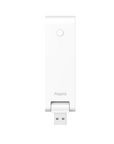
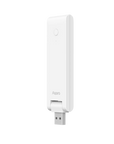


Hub M100
Grab a bundle & explore our kits!
Information
Future-proof your home automation with the Aqara M100. This Matter-certified hub acts as a Thread Border Router for robust connectivity, offers speedy local control, supports Wi-Fi 6 & WPA3 security. Simple USB-A setup.
Remember how easy setting up your smart home could be? The Aqara Hub M100 takes that effortless USB-powered convenience you might know (similar shape to the Hub E1!) and packs it with cutting-edge technology to solve today's biggest smart home challenges. Connect everything, boost reliability, and enjoy lightning-fast control.
Features
Your Hub for Any Matter Ecosystem: End compatibility issues! The M100 is a certified Matter hub, seamlessly connecting your Aqara Zigbee/Thread devices to Apple Home, Alexa, Google Home, and more. Acting as both Bridge and Controller, it ensures your smart home works together effortlessly, today and tomorrow. A cost-effective way to unify everything.
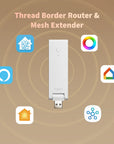
Built-in Thread Border Router: Tired of connection drops? The M100 acts as a Thread Border Router, strengthening your network with robust mesh technology. Extend range and improve reliability for your Thread devices, ensuring a stable, efficient smart home where things just work.
Fast Local Automations: Get instant results! The M100 processes key automations locally for Zigbee and Matter-over-Thread devices. Enjoy lightning-fast responses independent of your internet. Your essential routines run reliably, even offline, offering better speed, dependability, and privacy.
Wi-Fi 6 with WPA3 Security: Keep your connection smooth and protected. The M100 features 2.4GHz Wi-Fi 6 for efficient performance in busy smart homes, plus WPA3 security – the latest standard for robust network protection and peace of mind.
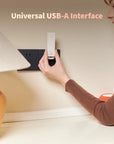
Setup Simplicity, Anywhere: Enjoy effortless setup. Powered by standard USB-A, plug the M100 into a router, power bank, or any USB adapter. This means clean installs and unmatched placement flexibility – put your hub exactly where needed, easily.
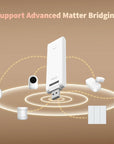
Advanced Matter Bridging: Go beyond basic Matter. The M100 supports advanced Matter bridging, preserving unique Aqara device functionalities within various ecosystems, including Home Assistant. Manage diverse devices while keeping the special features you value.
 Aqara
Aqara
 Apple Home
 Alexa
Alexa
 Google Home
 SmartThings
 Home Assistant

Aqara Smart Hub M100
Smart Home Simplified
Seamlessly connect devices to any Matter ecosystem. Build a robust Thread network. Fast local control & Wi-Fi 6 security.


Thread Border Router & Mesh Extender
The M100 adds Thread support to your existing smart home setup, letting you connect the latest Matter-enabled devices with ease. As a mesh extender, it also strengthens your Thread network—improving range, speed, and stability for a more reliable smart home experience.

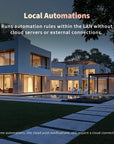
Reliable, Cloud-Free Automation
Keep your smart home running smoothly—even if your internet goes down. Automations for Zigbee and Matter devices execute locally on your network, ensuring fast, private, and reliable performance.
*Features like remote push notifications still require a cloud connection.

Seamless Integration Across Platforms
The M100 supports advanced Matter bridging to share compatible Aqara devices and scenes with platforms such as Home Assistant. Follow the pairing and scene-configuration steps; supported device categories and features depend on firmware and the target platform.


Faster, Safer, Smarter Wi-Fi
Stay connected with 2.4GHz Wi-Fi 6—built for speed, stability, and smarter performance in busy homes. Whether you’re running multiple devices or managing automation scenes, you’ll get smooth, reliable connectivity. Plus, WPA3 encryption keeps your network more secure than ever.
Flexible Setup Anywhere
Power the M100 easily from any USB-A port – router, PC, power bank, or adapter. The 210° adjustable shaft helps you find the perfect spot, even in tight corners or hidden behind devices for a clean, seamless look.

Find the Right Product for You

Specifications


FAQ
How do I connect the Aqara Hub M100 with the app?
Please follow the steps below: Step 1: If this is your first use, please connect the M100 Hub to a USB port; when the yellow light starts to flash, the M100 Hub enters pairing mode. Step 2: > Open the Aqara Home app > Click + in the upper right corner>click “Add Accessory” > Click the Hub M100 after searching, verify the router information > Click next, and wait for the connection to be successful. Step 3: If the network environment of the Hub M100 changes, please re-pairing the Hub M100, you can connect it to a USB A port again, long press the button for 10 seconds until the yellow light flash, and repeat the step 2.
What is the difference between the Aqara Hub M100 and the Aqara Hub E1?
1. M100 is a Matter controller and Thread border router (BR), supporting connection to ZigBee and Thread child devices, while E1 supports connection to ZigBee child devices only. 2. M100 supports automatically discovering devices and connecting them to the network via Bluetooth, E1 does not. 3. M100 does not support Wi-Fi repeater functionality, but E1 does.
How many child devices can the Aqara Hub M100 support?
The Aqara Hub M100 supports simultaneous connections of both ZigBee and Thread devices. The recommended maximum number of connected devices is 40 in total, with up to 20 of them being ZigBee devices. Notes: 1. Currently, the Aqara Hub only supports connecting to Aqara Zigbee child devices and does not support connecting to third-party Zigbee child devices; 2. To view the number of sub-devices bound to the hub, browse Aqara Home app — Hub´s device page — child devices.
What if the Aqara Hub M100 fails to connect to Wi-Fi?
Please follow the steps below: 1. Keep the phone close to the Hub and make sure the Hub is blinking yellow. 2. If your Wi-Fi router enable "Multi-band steering" function, please try to disable this function and connect the Hub M100 to 2.4GHz Wi-Fi. 3. If it is a router for business, disable the "forbid sending mDNS to wireless clients" setting. 4. Try with another Wi-Fi or creating a Wi-Fi hotspot with a phone can be even better, so you can know whether the pairing failed because the previous Wi-Fi signal is weak. 5. If the pairing has failed after multiple attempts, you may need to restart your phone to clear the memory cache.
Where can the Aqara Hub M100 be installed and used?
The Aqara Hub M100 can be installed in a standard USB A port with an output power greater than 2.5W (5V/0.5A), such as a wall socket, power strip, power adapter, electrical appliance, etc. with a USB power supply port.
If the Hub M100 fails to sync with third-party Matter ecosystems (e.g., Apple Home, Google Home, Alexa, SmartThings, or Home Assistant), How to deal with?
1. Connect the Hub M100 to the Aqara Home App 2. Update the Hub M100 firmware to v4.3.7 or later 3. In the Aqara Home App: Go to the device page Select "Third-Party Matter Ecosystems" Copy the Matter pairing code or save the QR code Enter the code or scan the QR in your third-party Matter ecosystem to sync the Hub M100
What is the connection distance between child devices and the Aqara Hub M100? Can it go through walls?
The operating distance between a child device and the Aqara Hub M100 may vary depending on the indoor environment. In most home settings, it is recommended that the distance between a child device and the Hub does not exceed 10 meters, with no more than two concrete walls in between to ensure stable connectivity.
How to add ZigBee child devices to the Aqara Hub M100?
Aqara Hub M100 can only support connecting with the Aqara ZigBee devices. 1. ZigBee child devices must be connected to the Aqara Home app through the Hub. When connecting, select the Hub to bind according to the APP’s instructions; 2.If you need to switch to a different gateway for a ZigBee child device, please remove the ZigBee child device from the Aqara Home app first, then add it again and re-select the Hub for it to be bound to 3. In the Aqara Home APP, you can go to the Aqara Hub devices setting page>Child devices and view the list of Child devices bound to the Hub.
Why are child devices often offline from the Aqara Hub M100?
1. It may be too far from the Hub M100, or there may be a metal obstruction in the way of the signal. Try to bring the device closer to the Hub and avoid any metal obstructions; 2. The battery of the sub-device may be depleted and needs to be replaced. Tip: To ensure optimal performance, please upgrade the device firmware promptly to maintain compatibility and stable communication between devices.
How to identify child devices of the same type bound to the same Hub?
You can look up the device's information log to distinguish devices; also, when adding devices, it is recommended to distinguish them according to the installation location or usage on the app and rename the devices.
Can the Bluetooth child devices connect to this Aqara Hub M100?
This device does not support adding Bluetooth child devices.
How does adding Wi-Fi devices differ from adding Zigbee devices to the M100?
Wi-Fi devices connect to the router and communicate locally or through cloud services according to their protocol and supported integration. They are not added as Zigbee child devices. Compatible Matter-over-Wi-Fi devices use the Matter setup flow supported by the controller.
Why don't I need to scan the QR code on the Aqara M100 when binding it to Aqara Home?
Unlike the Hub M3, the M100 does not support eMMC storage and is not defined as a security device. There is no need to scan the QR code on the device through the Aqara Home App to complete device binding.
Does the Aqara Hub M100 support any alarm functions?
The Aqara Hub M100 has no built-in speakers or buzzers, and does not have any local audio alarms on the Hub. However, alarm functions can be created by configuring an automation and linking child devices to the Hub.
What is Accidental Removal Protection for the Aqara Hub M100? How do I use it?
This feature prevents an accidental device network reset caused by accidental operations on the device's function button (e.g., long pressing the function button for 10 seconds), which could result in the device going offline. After enabling the accidental removal protection feature, the device can only be unbound via the app (if the device is connected to the network normally). You can enable this feature through the "accidental removal protection " option in Aqara Hub M100 device settings in the Aqara Home app.
Solution for token certificate issues during device networking / Notes on changing regions in the Aqara Home APP
1. The Aqara gateway will automatically select the server connection based on the region you select in your Aqara Home APP. When you need to switch your gateway and child devices to another region, you need to manually delete the devices that need to be switched from your account in the original region, and re-bind these devices to your account after switching to the new region; 2. If the device is a gateway, its connected child devices will be migrated along with the gateway to that region; 3. If the device is not manually deleted from the original region before switching regions, it may cause token certificate issues during the network connection process, preventing completion of the network connection. If you receive a token certificate error message, please screenshot the page and contact Aqara customer service for assistance.
What is Ark Technology?
Ark Technology is a distributed, multi-layered local disaster recovery technology within the Aqara Smart Home System. Currently, Ark Technology has been updated to version 2.0. It includes local Hub automation capabilities, central Hub local automation capabilities, multiple Hub backup switching, and proxy Hub disaster recovery. It can provide disaster recovery protection against potential unexpected failures or issues across various levels such as cloud servers, external communication networks, routers, central Hubs, and Hubs. This ensures the maximum effort to maintain local automation and scene execution, enhancing the reliability and stability of the Aqara Smart Home System.
What are the disaster recovery capabilities of the proxy Hub?
When Aqara Hub products (i.e. Hub M3, Hub M2, Camera G3, etc. with Hub functions) fail or are powered off, ZigBee devices that have been connected to the Hub and can act as a proxy Hub, and will be responsible for some basic local automation and scene execution.
What devices are currently supported as proxy Hubs?
There are the Aqara overseas version Aqara devices that support work as proxy Hub, please make sure that the device with the latest firmware: Aqara LED Strip T1 Aqara Ceiling Light T1M Aqara Smart Wall Switch H2 EU version Aqara Dual Relay Module T2
What are the precautions for proxy Hub disaster recovery?
1. Because the disaster recovery of the proxy Hub involves coordination between different devices in the system, the firmware of the devices (including Hub firmware, proxy Hub firmware, and firmware of other ZigBee Router devices) need to be updated to the latest version to have suitable coordination capabilities. If the firmware of some devices are not the latest and do not have the coordination capabilities of the Ark proxy Hub technology, the triggering and execution of some automation scenarios by the proxy Hub may fail. 2. In addition, as a disaster recovery method in extreme cases, the proxy Hub disaster recovery technology can only support some simple automation conditions and actions (such as single-clicking a switch, turning on a device, turning off a device, etc.), and may not be able to support some complex automations.
When the Hub’s network connection is disconnected, why can some smart scenes still be executed but others cannot?
1. The execution methods of smart scenes are divided into cloud execution and local execution. Manually executed smart scenes are always cloud-executed, while automatically executed smart scenes can have their execution method viewed in the "More Settings" section of the smart scene. 2. For smart scenes executed in the cloud, the signal sensed by the triggering device needs to be uploaded to the cloud through the network, and the cloud will then send the corresponding control command to the execution device. Therefore, once the Hub is disconnected from the network, the smart scene cannot be executed; 3. In the locally executed smart scene, the triggering device will send the sensed signal to the Hub, and the Hub will send the corresponding control command to the execution device via Bluetooth, ZigBee or LAN. Therefore, even if the router cannot connect to the external network, as long as the communication connection between the Hub and the execution device is normal, the smart scene can still be executed.
Why can't the Aqara Hub M100and its child device devices be remotely controlled after being connected to HomeKit?
Remote access through Apple Home requires a compatible Apple home hub, such as a supported HomePod or Apple TV, with internet access and the appropriate Home setup. Follow the current requirements shown in the Home app.
Why can't some sub- devices be found in the Home app?
When the Aqara Hub M100 was added to the Home app, only child devices that support HomeKit function can be displayed in the Home app.
How to connect to third-party Matter ecosystems? What capabilities does Aqara Advanced Bridge function offer?
1. Using Hub with Aqara Advanced Bridge functionality (Aqara Hub M3/Hub M2/Hub M1S/Hub M100/Hub E1, Aqara Camera Hub G5 Pro/Camera Hub G3/Doorbell Camera Hub G410), you can connect to third-party Matter ecosystems, such as Apple Home, Google Home, Amazon Alexa, Samsung SmartThings, Home Assistant, Homey; 2. Taking Home Assistant as an example, go to Settings — Devices & services — Add integration — Add matter device — Scan QR code, and scan the Hub's Matter QR code (found in the hub manual or Aqara home app —Settings — Device page — Expose to Matter); 3. Through the Aqara Advanced Bridge function, Aqara scenes or private functions can be bridged to third-party Matter ecosystems. For detailed information, please visit the Aqara official website. https://www.aqara.com/us/explore/introducing-advanced-matter-bridging/ https://www.aqara.com/us/explore/everything-matter/
Which Hub can be migrated by Aqara Hub M100?
Aqara Hub M100 currently supports replacing Hub M100 and Hub E1, and can be replaced by Hub M3, Hub M200, and Hub M100